Projects and templates
Projects are the top-level containers in Vaizy. Every milestone, team member, transaction, risk, and report belongs to a project.
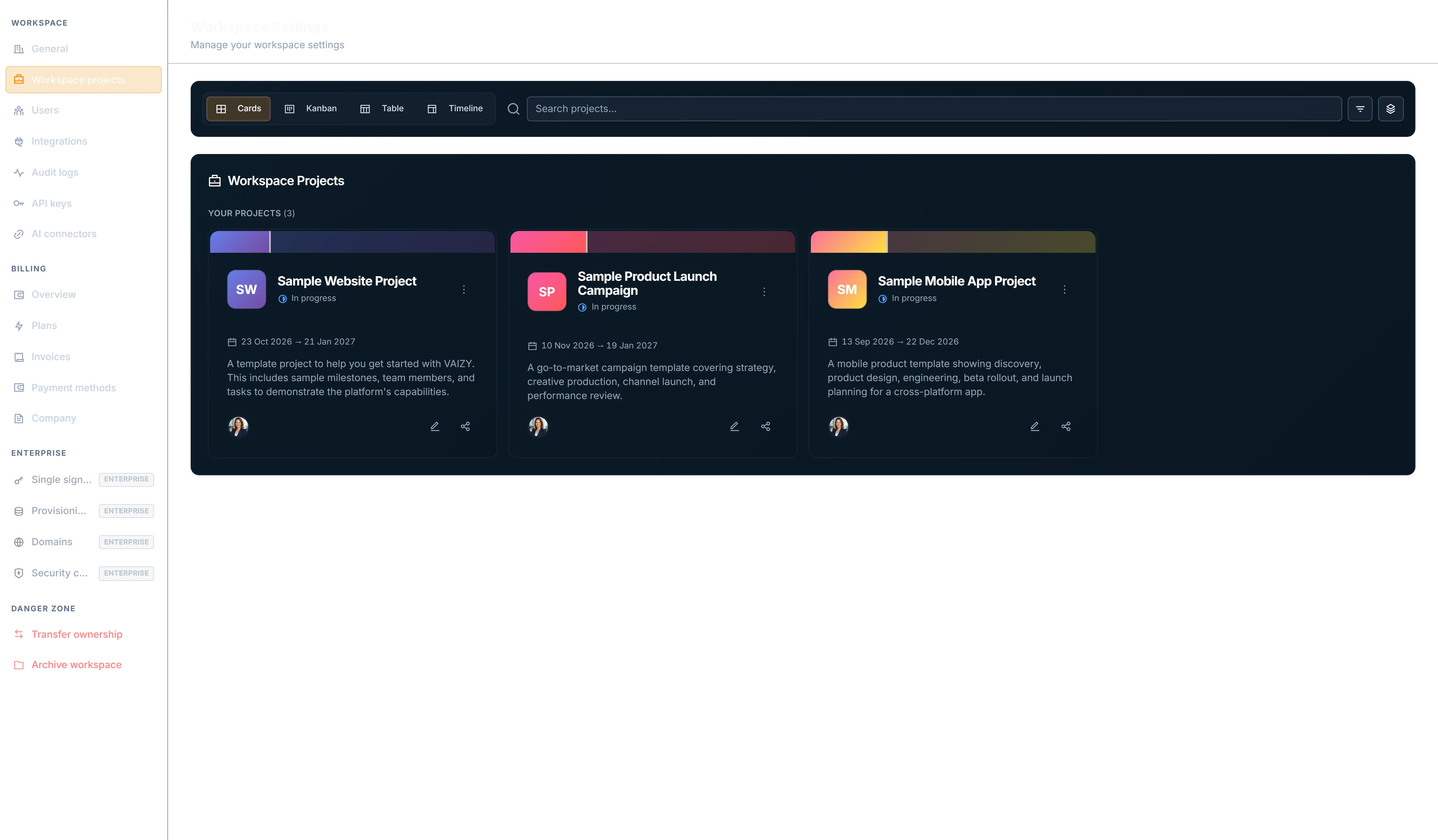
Create a project
Click Add Project in the sidebar or in Settings > Projects and choose how to start:
- From a template, when the work has a familiar shape.
- Import a file, to bring in a plan from a spreadsheet or Microsoft Project.
- Blank, to set everything up yourself.
- Describe it to Vaizy AI, and it drafts the project for you.
If you start from inside a program, the new project stays in that program.
For a blank project, set:
- Project name
- Description
- Status
- Team lead
- Visual identifier
- Budget and currency context
Project statuses are practical, not decorative: Planning, In Progress, On Hold, Completed, and Cancelled. Status and priority now show as colour-coded badges everywhere they appear. The description field supports bold text and bullet lists via a lightweight toolbar or Ctrl+B, and the industry field now offers a much wider range of industries, including engineering, construction, legal, and government — the suggested milestone phases you see when creating a milestone match your project's industry.
The Projects page
The Projects page lists every project you own or have accepted a share on. Open it by clicking the Projects header in the sidebar, or from the command palette. It follows your sidebar selection, so with no projects selected you see them all.
Workspace owners and admins can see the whole workspace in Settings > Projects, split into your own projects and the workspace's other projects. Workspace admins can duplicate a project from there too.
Edit a project
The project form is organised into tabs: General, Status, Schedule & Budget, Team & Client, and Regional. Changes save as you go, and the form shows when it's saving and when it's saved. Just close the form when you're done.
Write status remarks
Keep stakeholders up to date by writing a short status remark on the project's Status tab. The latest remarks show up there, in the project's monthly report, and in VaizyAI's project summary, so a single update reaches everyone who reads about the project.
Link projects with dependencies
When one project can't start until another finishes, link them. Open the project form and add a dependency on another project, then pick the type:
- Finish to Start (FS)
- Start to Start (SS)
- Finish to Finish (FF)
- Start to Finish (SF)
Add lag if there should be a gap between the two. The roadmap draws a connector for each link, highlights the critical path, and shows how a slipping project pushes the projects that depend on it. A project with a forecast slip stays on the timeline while the slip is in view, so you can scroll to the end of the slip bar, and "Fit to projects" includes it. VaizyAI can reason about the same links.
See what changed
Every project keeps a change history. Click the Activity button on Milestones, Risks, Deliverables, or Finances to see who changed what and when, with date filters, word-level highlights for text changes, and pills for moved dates and changed amounts. It works across several selected projects at once. If you can't see some of those projects' history, the panel tells you which ones.
On Pro and Enterprise plans you can also save a project's plan as a revision and compare it later. See Analytics and EVM.
Use templates
Templates keep setup from becoming another spreadsheet ritual. A template can include a starting milestone structure, team roles, budget categories, and sample risks.
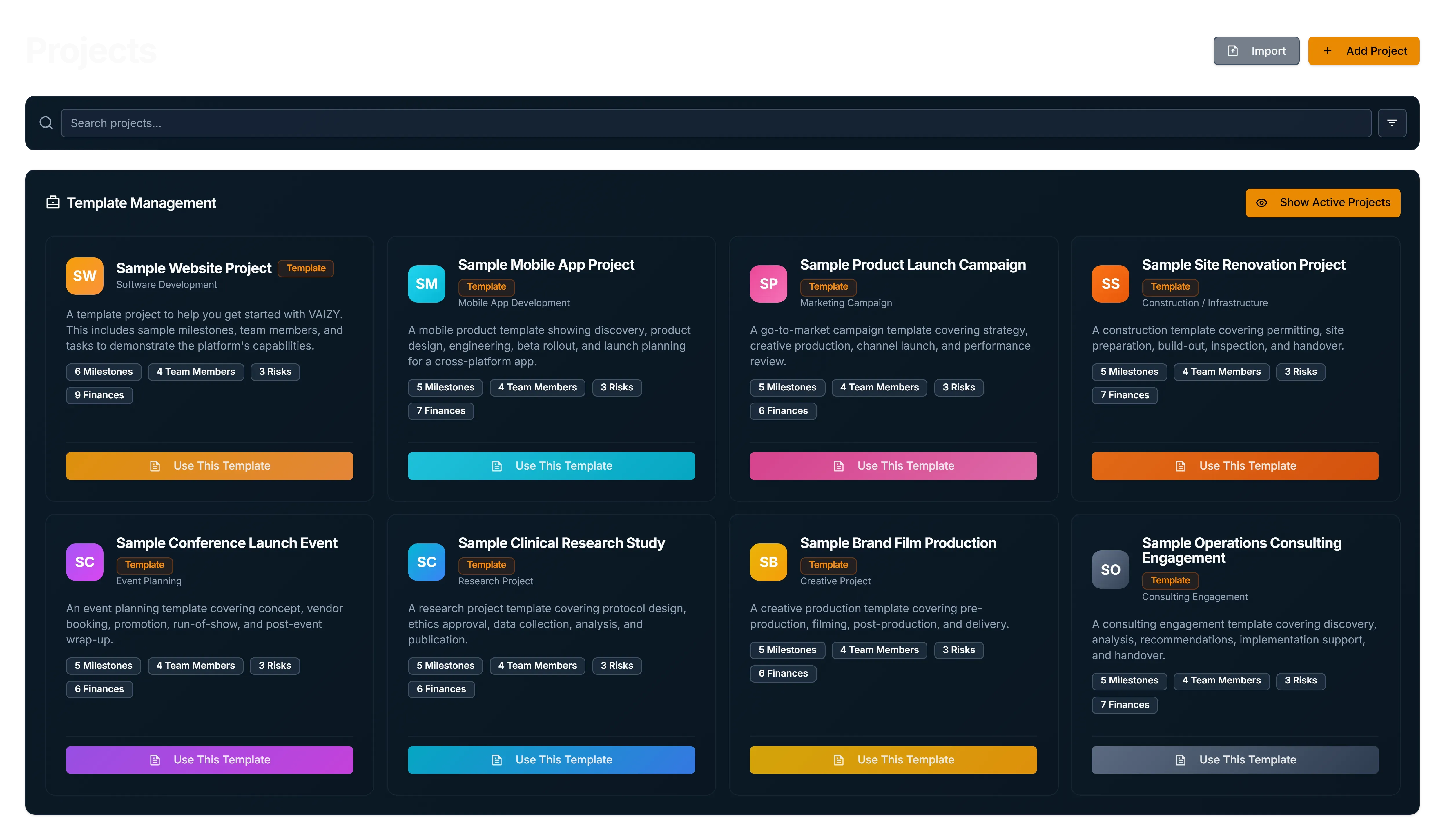
Use a template when the work repeats: website builds, implementation projects, audits, onboarding tracks, delivery programs, or client projects with a familiar shape.
From Settings you can also spin up ready-made sample projects to explore the workflow with realistic data. Alongside the website starter, there is a Sample Mobile App Project pre-loaded with a mobile delivery plan: discovery, product design, engineering, beta rollout, and launch milestones, plus a team, risks, and finances.
Every deliverable in the sample projects and the built-in templates comes with a full RACI already assigned — an Accountable owner, Responsible assignees, and Informed stakeholders taken from its milestone's team — so a project you create from a template opens with a populated RACI view instead of blank rows.
Share a project
Project owners can invite collaborators from the project share dialog. The invitee has no access until they accept the invitation. Forwarded, delayed, or scanned links do not grant access on their own.
Accepted editor and admin collaborators can update shared project work on projects they can edit, and accepted admin collaborators can invite new collaborators, change roles, and remove shares. For each collaborator, finance visibility is controlled separately from edit access. Someone can help run the delivery work without seeing project finances. See Collaboration and permissions for the full sharing flow and finance visibility rules.
Organize your workspace
Drag-and-drop reordering of project folders and projects in the sidebar is smooth and responsive, and a drag needs a deliberate movement before anything shifts. On any page, you can set the display view (table, kanban, etc.) independently rather than sharing one workspace-wide setting. Table columns are all shown by default, and you can hide any data column you don't need from the Columns menu.
The sidebar project list has its own toolbar: a Select All toggle that respects your search and filter, a project search, and a status filter that shows how many filters are active. Add Project and Add New Folder live under the "+ Add" menu at the bottom. The sidebar remembers how you left it when you come back from Settings, and if it's collapsed, hover a folder to see its name. Members only see the folders that contain their projects and can't create folders of their own.
The Projects page also has a board view grouped by status (Planning, In Progress, On Hold, Completed, Cancelled), alongside the existing Cards and Table views. Each card shows a progress bar and the project's start and end dates, and all three views stay up to date live as changes happen, across tabs and users.
Bulk-editing multiple projects now reports exactly how many succeeded and how many failed if only some of your selection could be updated, instead of one generic failure message.
Archive instead of cluttering the sidebar
Archive completed or inactive projects. Archived projects keep their data but stop competing for attention in the day-to-day view.
To tidy up several at once, go to Settings > Projects, select the projects and choose Archive, Unarchive or Delete. Owners and admins can archive any project in the workspace, and one undo brings them all back. Delete only applies to the selected projects you created, and asks you to confirm first.
Delete with care
Destructive deletes require an explicit confirmation step. Accidental deletion is not a workflow.
Was this helpful?
Still need help? Ask the team