Vaizy AI
Vaizy AI is the assistant inside the workspace. It answers from live project data, not a loose browser snapshot and not generic project advice.
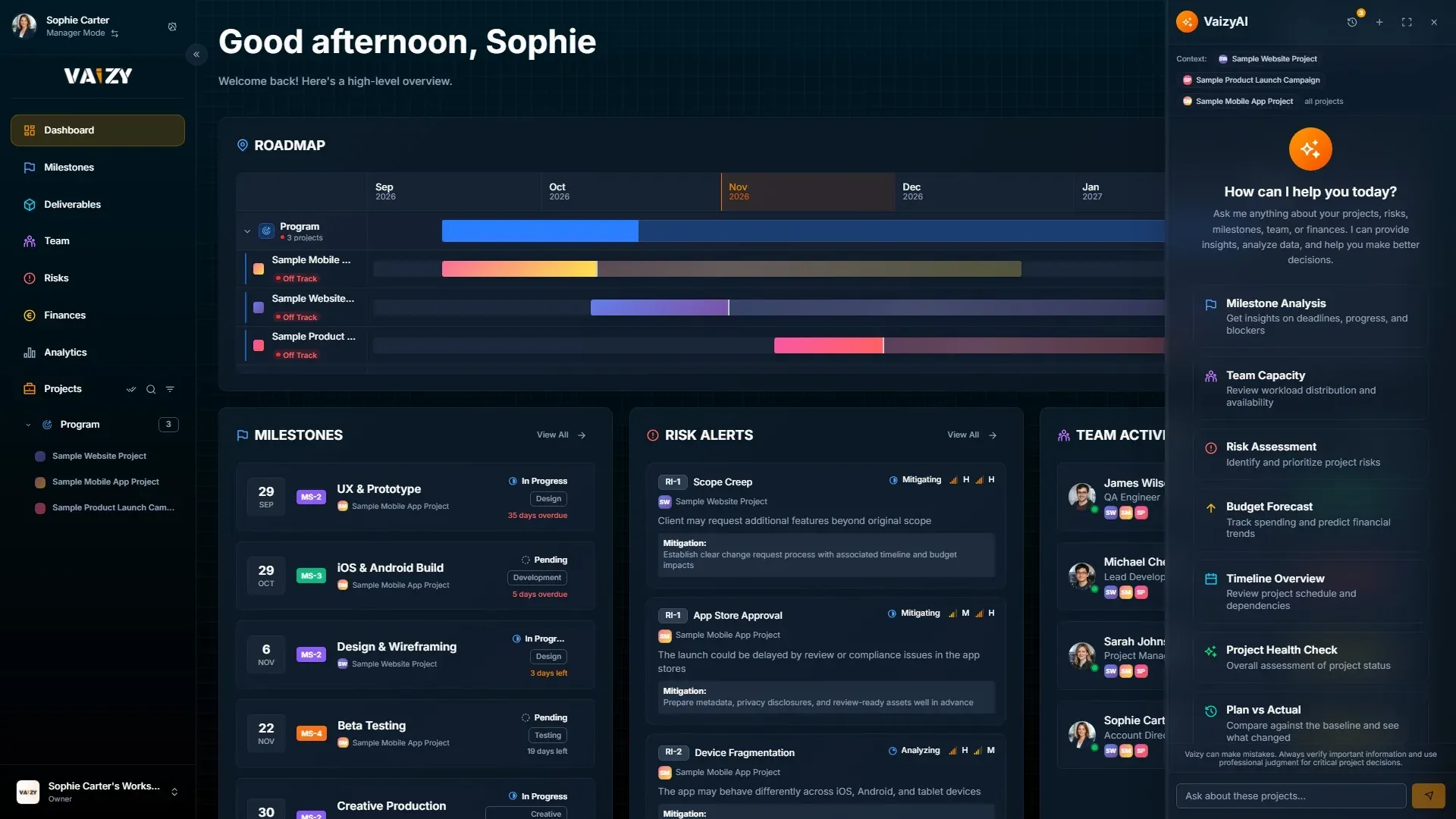
What it can answer
Ask about:
Milestones
Risks
Team capacity
Timelines
Budget
Cash flow
EVM metrics
Project health
Portfolio health
When multiple projects are selected, Vaizy AI switches to portfolio mode. Quick actions reframe around cross-project questions: capacity, risk, timeline, and health.
Vaizy AI also knows how your projects depend on each other, including the critical path, and on Pro and Enterprise plans it can compare saved plan revisions to tell you what changed since the baseline. If you ask about projects whose change history you can't see, it tells you rather than guessing.
Reopening a saved conversation restores the project scope it was created with, so switching projects in the sidebar afterward doesn't change what an old conversation is talking about.
A project's summary includes its latest status remarks, so you can ask what the project manager last reported.
Ask what-if questions
Before you move a date or sign off on a change, ask Vaizy AI what it would do to the plan:
"What if MS-4 slips two weeks?"
"What if we start the website relaunch a month later?"
"What if Sam joins the project in March?"
"What if contractor costs go up 10%?"
"What if we cut the reporting module?"
Vaizy AI shows the effect on the schedule, on the work that depends on it, and on cost. Nothing is saved, so you can try as many scenarios as you like.
You can also ask "Which projects need my attention first?" and Vaizy AI ranks your projects with the reasons for each.
Watch it work
While Vaizy AI answers, you see each step it takes. Stop it if it's heading the wrong way, retry or edit your question, or pick one of the suggested follow-ups. Records it mentions show as links with their current status and severity.
Vaizy AI also knows which page you are on, so "what's at risk here?" means the page in front of you. Look for the Ask Vaizy buttons on Portfolio Health, the EVM widgets and milestone rows, or right-click a milestone bar, card, table row, calendar entry or capacity row and choose Ask Vaizy.
Mentions and chips
Use @[mention] style references to point the assistant toward a specific data area. AI replies can render team members, milestones, risks, and projects as inline chips. Clicking a chip navigates directly to the entity's page with the item highlighted.
Charts in chat look like the rest of Vaizy: the same colours for budgets, spending, cash flow, risk and statuses, avatars for projects and team members, and currency axes for money. Click a project chip in a chart to open the project.
This matters when the answer needs to turn into action. A named risk or milestone should not become another copy-paste hunt.
Full-screen chat
Open the AI chat full screen when the question needs room: portfolio summaries, risk reviews, financial explanations, or pre-meeting analysis.
Privacy layer
Before project data reaches the AI model, Vaizy applies a privacy layer:
Personal names, project names, and client/organization names are tokenized and restored in the answer. Typing or pasting a known name into chat auto-tags it for protection before it's sent.
Emails, credential patterns, API keys, UUIDs, and sensitive fields are masked or redacted.
Bearer tokens are irreversibly replaced.
Credential headers are stripped at the gateway.
A final PII scan can block a request if sensitive data remains.
AI calls go through a server-side gateway.
Conversations are stored per user in Vaizy. The OpenAI organization behind Vaizy's default model has Zero Data Retention enabled. If your workspace picks another provider's model, or its own key or endpoint, requests go to that provider. See Security and privacy for the full data protection posture.
Good prompts
Use direct operational prompts:
"Which milestones are driving schedule risk?"
"Summarize cash flow for the next quarter."
"Which projects have the most exposed team capacity?"
"What changed in project health since the last review?"
"What changed since the baseline?"
"Which projects are on the critical path?"
Risk suggestions
Beyond mitigation advice, Vaizy AI can proactively suggest new risks worth logging based on your project's current data. Suggested missing risks appear from the Vaizy AI button.
AI Suggestions on your dashboard
On Pro and Enterprise plans, add the AI Suggestions widget to your dashboard for up to five suggestions drawn from across your projects: milestones at risk, budget or burn concerns, team overallocation, and gaps in your risk register. It refreshes every 30 minutes, and you can refresh it sooner by hand.
AI settings
AI settings are configured workspace-wide by an admin, rather than per individual user.
Choose the model
On Pro and Enterprise plans, a workspace owner or admin can choose which model answers in Vaizy AI:
Go to Settings > General.
Under Vaizy AI model, pick a model from the list.
Save.
Some models use the monthly allowance faster than the default; Settings tells you how much faster before you save. Enterprise workspaces can also pick Your own key or endpoint to use their own provider key or their own OpenAI-compatible endpoint.
Monthly allowance
Each person has a monthly Vaizy AI allowance, set by your plan. The chat lets you know when you are close to it and when it resets, on the first day of the next month.
Ask Vaizy AI to find or change things
Vaizy AI can look up a milestone, deliverable, risk, team member or logged hours, and create or update one for you. It proposes the change on a card, and nothing is saved until you confirm it. It uses your own access, so it can only do what you could do yourself in the app.
It can also make several changes that build on each other in one reply, such as a new project and then its milestones. It fills in only what you told it and never makes up rates, amounts or budgets. Changed your mind? Undo a change it saved straight from the chat.
Connect Claude, ChatGPT, Copilot Studio and other AI apps
Prefer working in Claude, ChatGPT, Microsoft Copilot Studio or another AI app? On Pro and Enterprise plans you can connect it to Vaizy. The app acts as you, in one workspace, with exactly your access, so it can never see or do more than you can.
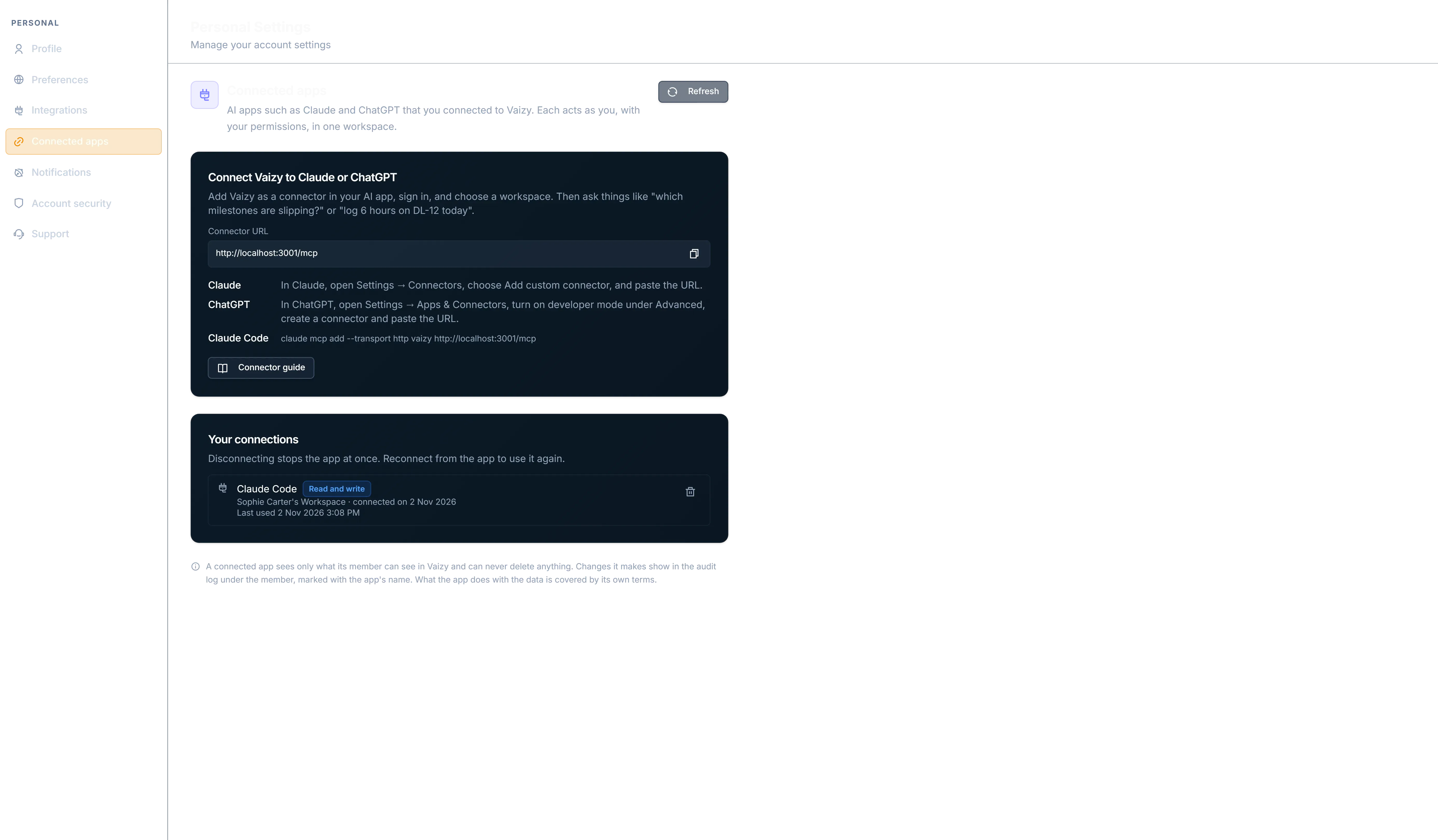
A workspace owner or admin turns on AI connectors. Settings shows exactly what data leaves Vaizy before they do.
Add Vaizy as a connector in your AI app.
Approve the app on the Vaizy consent page.
Copilot Studio agents connect through Microsoft's certified Power Platform connector. See MCP for each app's setup.
Once connected, the app can read your projects and give you insights, answer what-if questions, rank projects by which need attention first, create a whole project from a plan, plan one from a short brief, update projects, assign team members, review and correct logged hours, add comments, and show a live project health dashboard right in the chat. Ready-made prompts get you started with a weekly status report, a risk review, a budget check, a slip report or a project import.
Nothing can be deleted through a connector, and team members' email addresses are never shared. You can disconnect an app any time in your personal Settings > MCP.
AI can make mistakes
Use Vaizy AI to surface patterns and prepare decisions. Do not use it as the final authority for critical delivery, finance, legal, or staffing decisions.
Was this helpful?
Still need help? Ask the team