Risks
The Risks section is the live risk register. Every risk has an owner, severity, status, and mitigation plan. No buried Confluence table. No stale slide.
What to track
A risk can include:
Title
Description
Category
Probability
Impact
Derived severity
Status
Owner
Associated team members
Linked milestone
Mitigation plan
Owner is the single person accountable for a risk. Associated team members is a separate list for anyone else affected by or involved with it.
Descriptions support bold text and bullet lists via a lightweight toolbar or Ctrl+B, with formatting preserved wherever the description is shown. Clicking Bold or Bullet-list before you've clicked into the text box now starts that formatting from where you type next, instead of doing nothing. Pasting rich text from Word or Google Docs keeps only the bold and list formatting.
The risk form is split into tabs, matching the milestone form, so longer forms are easier to scan.
Probability and impact use a five-level scale: Very Low, Low, Medium, High, Very High, shown as VL/L/M/H/VH codes. Probability, impact, and status all display as colour-coded badges, and the same codes appear everywhere risks are displayed, including the dashboard Risk Alerts widget, so a risk reads the same wherever you see it.
Alongside the built-in categories, you can select custom risk categories when logging or editing a risk.
Risk codes use the RI-N format, such as RI-1. Codes stay stable when the risk is edited. You can also set a custom code, such as SEC-REVIEW, instead of the auto-generated one; custom codes must be unique within the project.
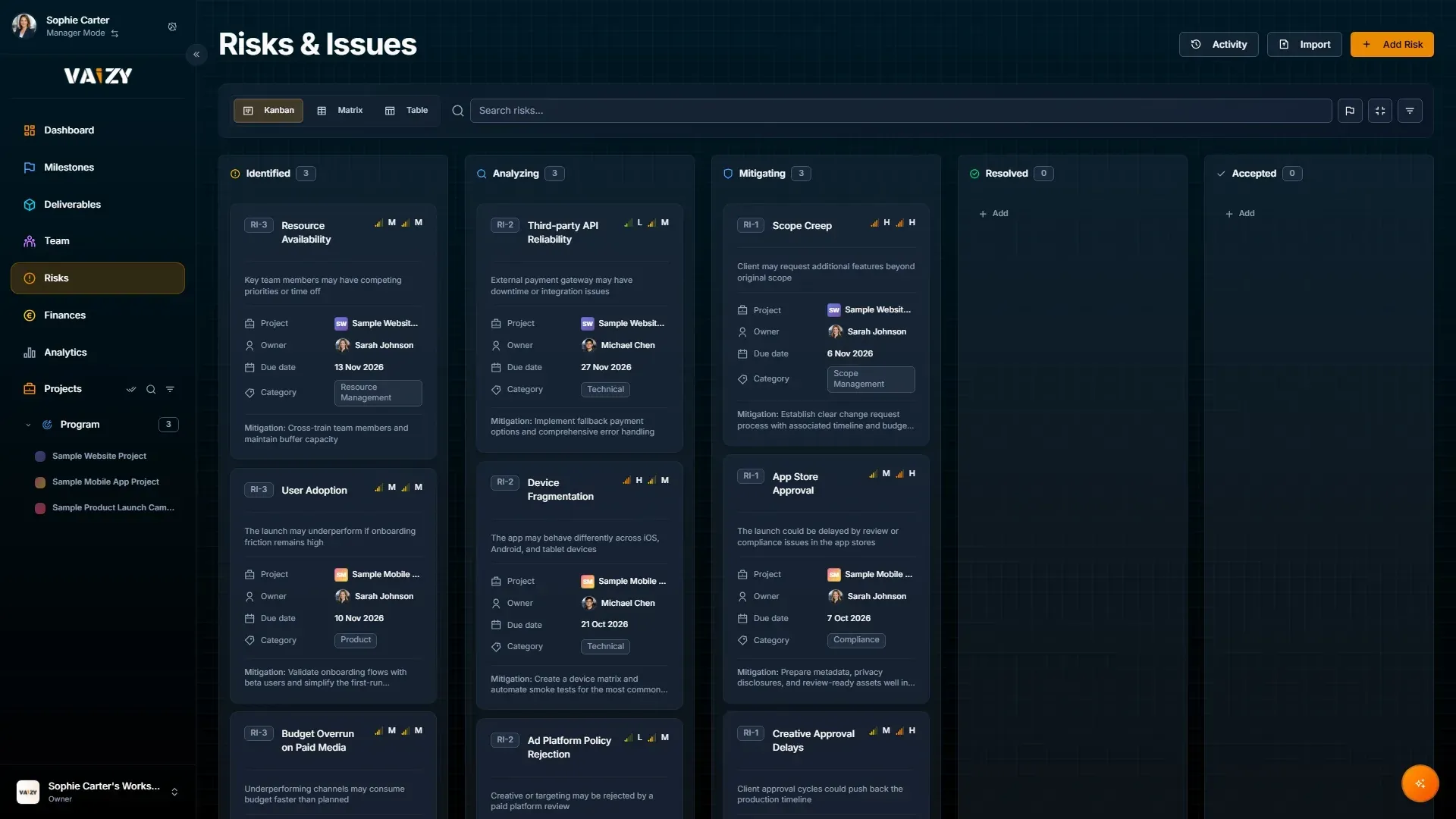
Kanban view
The Kanban view groups risks by status. Drag cards between columns to move work through the mitigation process.
Use this for risk reviews where the question is simple: what is identified, what is being analyzed, what is actively being mitigated, and what has been resolved or accepted.
Right-click a card for quick actions: Ask Vaizy, Edit, Duplicate, or Delete. Drag over several cards to select them, then drop one in a Kanban column or matrix cell to move them all at once. Editing from a card switches you to Table view with that risk highlighted. Switch to compact cards for a denser board when your register is long. The matrix starts in compact view, and Vaizy remembers your choice for each view. If an avatar can't load, it falls back to initials instead of a broken image. Cards drop the project label when you're only looking at one project. Hover a card without clicking to use keyboard shortcuts: Space assigns the risk to yourself, E opens it for editing, and Backspace/Delete deletes it.
Table view
Use the table view when the register is long or needs sorting, filtering, import, or bulk updates.
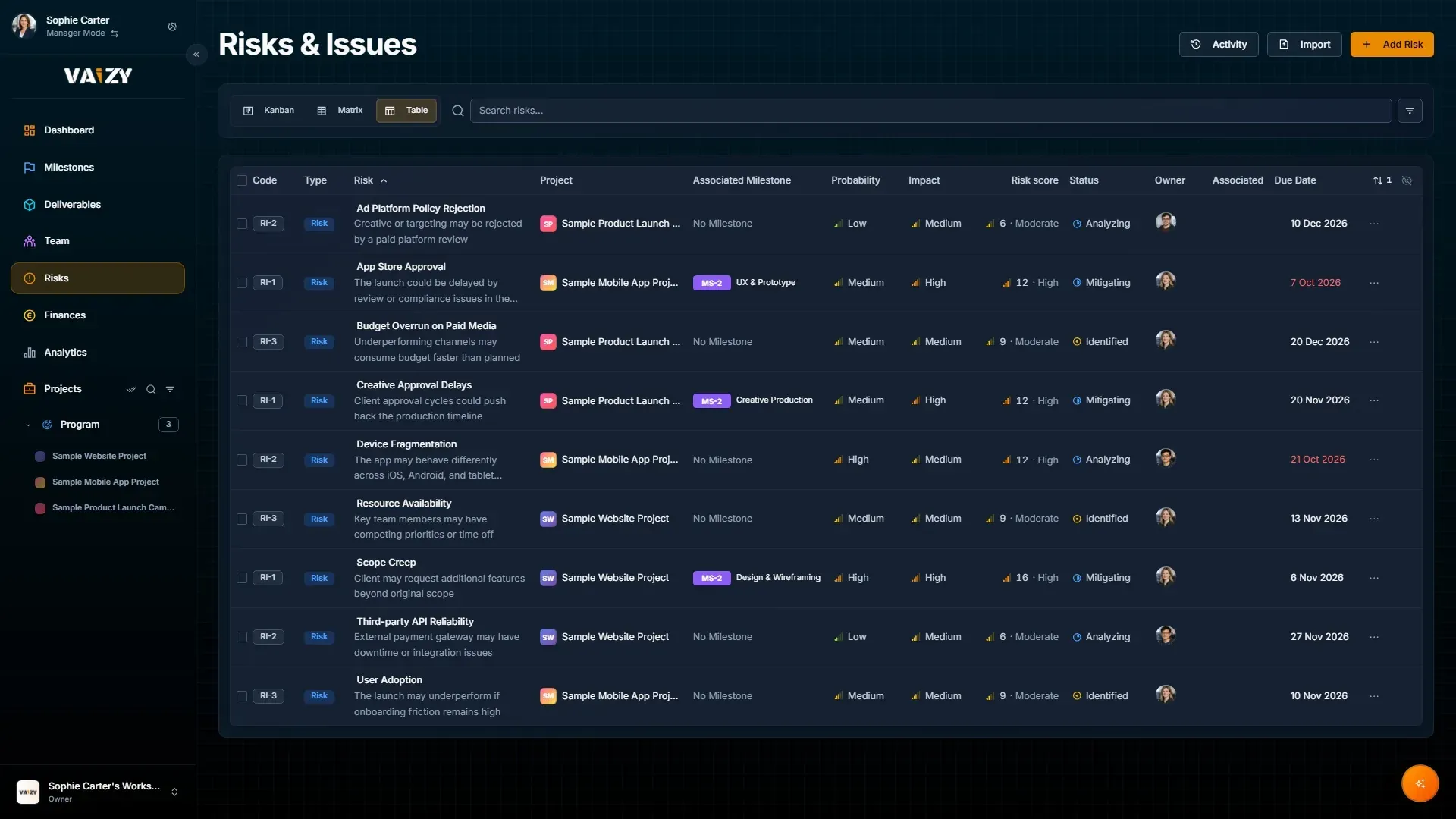
Click a single cell — a title, a status badge, or the + beside an assignee's avatar stack — to change it right there, without opening the full form. Group rows by custom category to review related risks together. Search and filter controls stay together on mobile, instead of the filter row wrapping onto its own line. A phase filter, drawn from each risk's linked milestone, sits alongside the rest of the filters, and whatever filter, search term, and sort order you set stays in place for the rest of your browser session.
Editing an existing risk through the full form now autosaves as you make changes, with a small "Saving..." / "Saved" label in the form footer. Pressing Enter in a single-line field saves straight away.
To see who changed a risk and when, including escalations and status changes, open it and switch to the Activity tab. The Activity button on the Risks page shows the history of every risk at once.
Select multiple risks to bulk-edit type, status, probability, impact, category, owner, or milestone in one action, or delete them together.
The table footer shows summary totals for the risks in view, matching the same footer totals on Milestones, Finances, Team, and Deliverables.
Undo a change
Made a mistake? Press Ctrl/Cmd+Z to revert your most recent create, edit, delete, or bulk action on risks. Every change shows a success message with an Undo button too, and you'll find an "Undo: " entry in the command palette while there's something to undo. This is a quick safety net for the last few minutes, not a permanent history — entries expire after 5 minutes.
Link risk to delivery
Connect risks to milestones. That makes the effect visible where delivery decisions happen and lets dashboard widgets surface the risks that threaten the plan.
On the dashboard
The Recently Updated Risks widget shows the risks and issues touched most recently, with who last changed each one and a short summary of what changed. It's available on Pro and Enterprise plans.
Who else is here
Risks shows an avatar stack of other users currently viewing the same project. Changes anyone makes sync live to your screen without a refresh.
AI-assisted mitigation
VaizyAI can analyze open risks and suggest mitigation ideas based on the actual project context, and can proactively suggest new risks worth logging based on your project data. Treat those suggestions as a starting point for professional judgment, not an automatic decision.
Was this helpful?
Still need help? Ask the team