Team and Member Mode
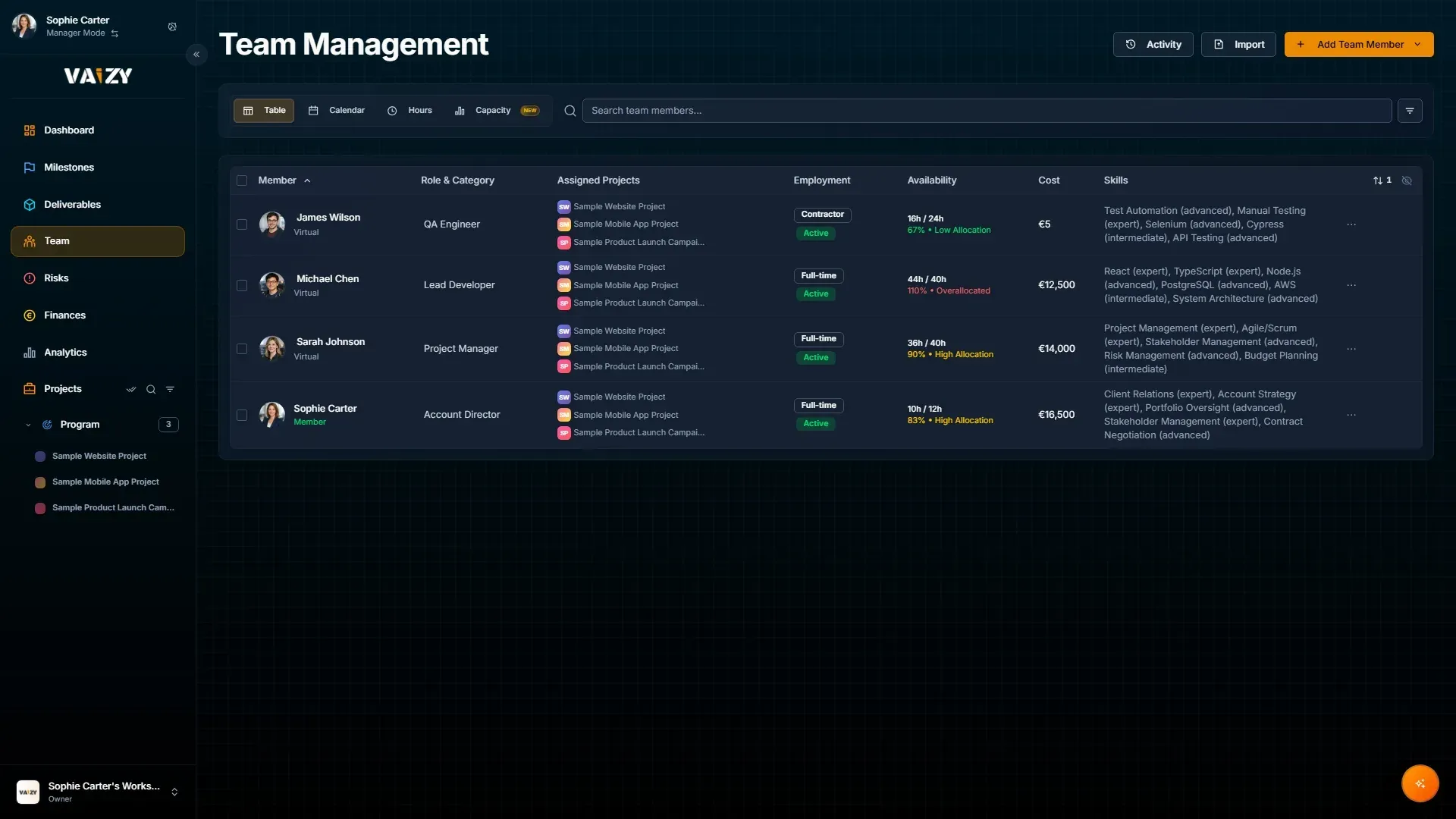
The Team section is where Vaizy keeps people, roles, availability, cost rates, assignments, and access together.
Team records
A team member can have:
Name and role
Employment type
Cost rate
Skills (Pro and Enterprise plans)
Availability
Assigned projects
Access status
Employment type matters because cost behavior changes.
Salaried people can show their full monthly burden on every assigned project, while portfolio totals deduplicate the related payroll event. Contractors and freelancers can generate expense, income, or both, depending on the project role setup.
The profile picture field uses the same Gravatar/initials picker as your own profile. Renaming a member or changing their email re-resolves the avatar from the new email automatically. If Gravatar can't find a match, hover the avatar for a refresh control that clears the cache once you've set one up.
Grouping
Group the team table by department or team to review staffing area by area, instead of scanning one long list. To focus on one department, use the Department filter.
Add people to a project
Click Add Team Member and choose what you need:
Add from workspace picks someone who's already a user in your workspace, so you don't have to invite them again.
Add virtual team member creates a placeholder for a role or person who doesn't use Vaizy.
A project with no team yet shows the same choice right on the Team page.
Once someone is on the project, Vaizy puts them on its open milestones that fall within their contract dates and books their cost, so you don't have to tick them in one milestone at a time. Remove them from the project and that cost is released.
Invite members
Invite members from the Team page. The invitee receives an activation link, creates their account, and only gains access after completing the flow.
The link always takes them to the project they were invited to, even if they open it in another tab or browser or sign in with SSO first. They keep the role you invited them with, and accepting never lowers the role of someone who is already a workspace admin or manager. If the invitee already uses Vaizy and takes over a placeholder team member, the member row shows their own name. When you promote someone to workspace admin, their new access applies straight away.
Member accounts are real Vaizy accounts. They can use their own login and enable two-factor authentication.
Manage member access
Workspace owners and admins can disable a member's access, put them on time-off, reinvite them, or remove them from the workspace entirely from the Team management view. Removing a member frees up their billed seat and keeps their history intact — they can be re-invited later if they come back.
Disabling a member also takes away their workspace-wide access, including any admin rights and the ability to create projects, and resets their roles and project access. They show as Access disabled on the Team page and as Disabled in Settings > Users, where Restore access brings them back with a clean slate. Only the workspace owner or an admin can disable another admin.
Settings > Users shows everyone who takes up a seat in your workspace, including colleagues who were added at the workspace level rather than to a single project, so you can change anyone's role or remove them from one place.
Member Mode
Member Mode is the focused workspace for contributors.
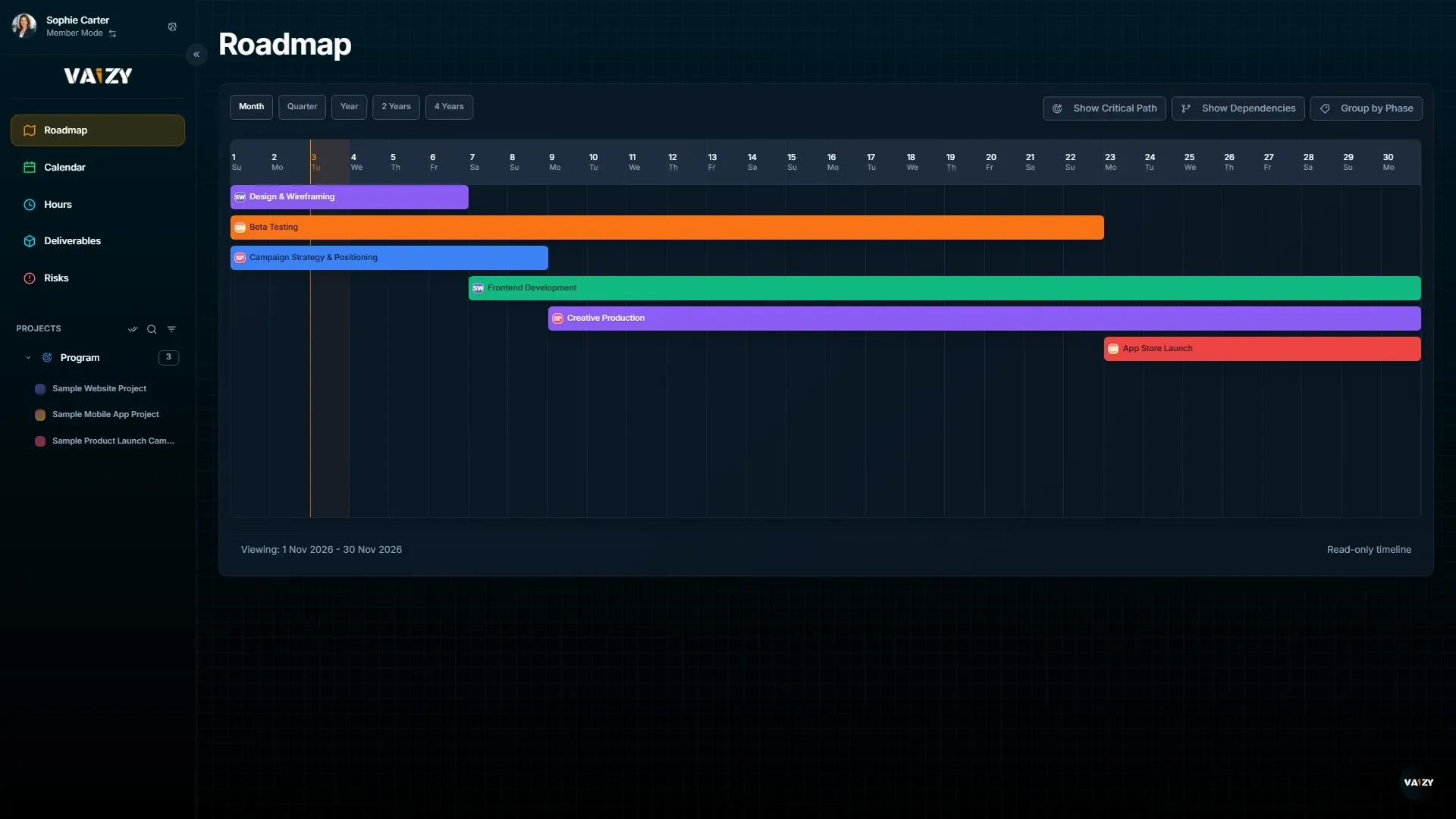
In Member Mode, a person sees:
Assigned projects
Personal roadmap
Calendar
Hours and their own time entries
Relevant assigned work
They do not get the full portfolio control surface. They see what they need to execute without becoming another accidental admin. Owner-only prompts and actions, like creating a project, are hidden across Risks, Finances, Team, Milestones, Deliverables, and the Member Hours page. A member who has no manager-level access to any project doesn't see the view-mode toggle at all — creating a project stays with workspace owners, workspace admins, and activated managers.
Hours and calendars
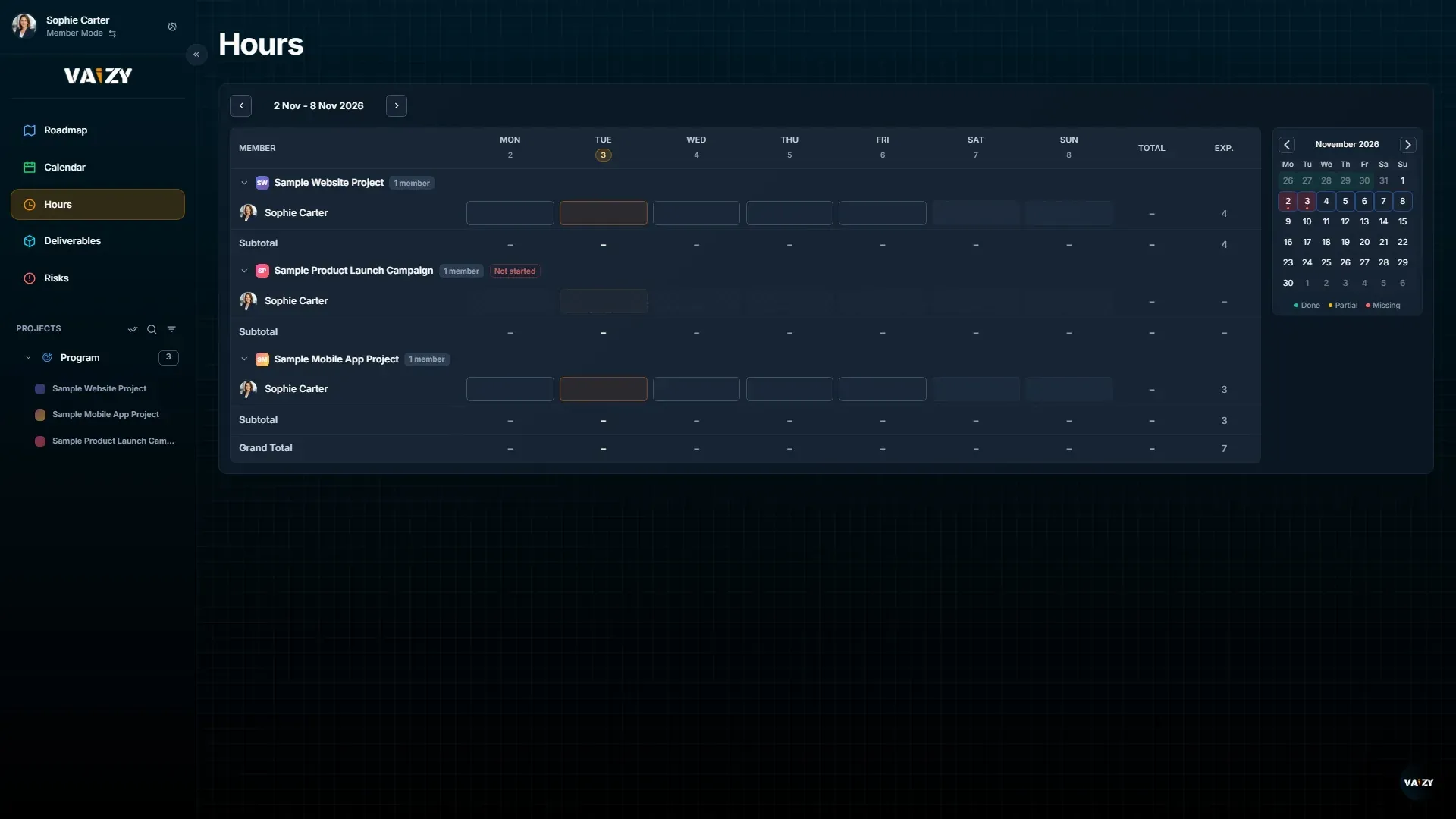
Use the hours view to compare logged and expected time.
Use the calendar view to see assignments and leave in time.
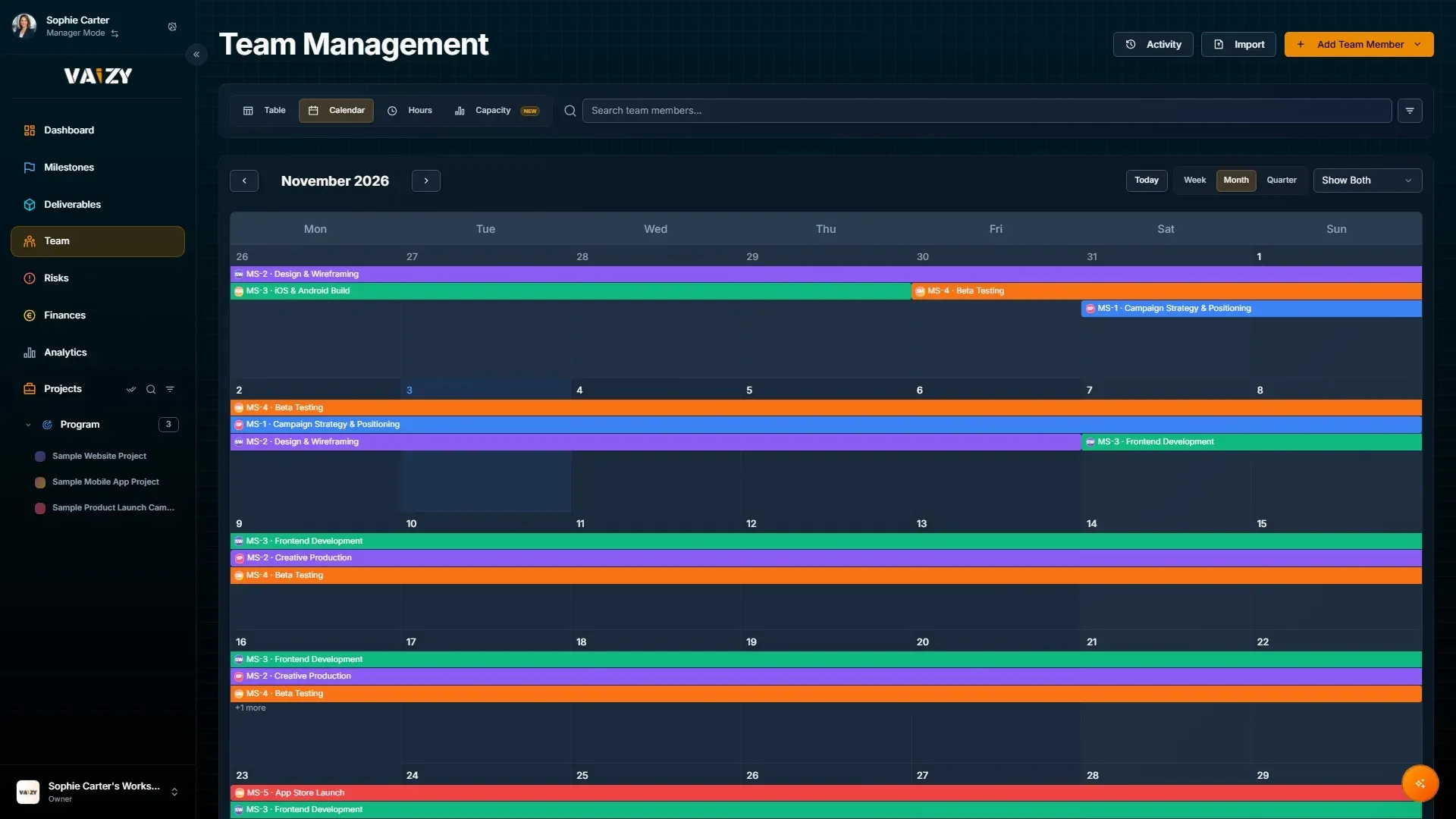
Right-click (or long-press) a calendar item to see its details in a card, instead of hovering — the card stays put instead of flickering as you move the mouse. A left click closes the card before opening the item's edit dialog, and team member avatars now show up in the details card and in the Time Off form's member picker.
Public holidays
Vaizy adds each member's public holidays to team scheduling and the Gantt views automatically, based on the country set on their profile. Change someone's country and the old country's holidays are swapped for the new ones. Synced holidays show with their own legend colour, and if you open one to edit it, the Type field is already filled in. The same holidays are what syncs to Google Calendar.
Allocation badges
Each person on the Team page has an allocation badge showing how much of their time is planned, as a percentage: Low Allocation in green, High Allocation in amber, or Overallocated in red. The same badge appears in the Team Activity dashboard widget and in the resource planning matrix, so you can spot who is stretched thin wherever you're looking.
Capacity Planning
On Pro and Enterprise plans, the Capacity Planning view shows each person's scheduled load day by day across all their projects, so you can spot overallocation before it happens.
A member's status is based on the hours they're actually scheduled for and have logged, measured against their real daily capacity after holidays. Someone fully budgeted on a project role but not yet scheduled on any milestone won't show red. Their role budget still appears in the sidebar as a cost commitment.
Click a milestone title to jump to it in Milestones. Days where two milestones overlap get an amber underline.
Contract windows
If a team member is assigned outside their contract window, they show up greyed out and unclickable when you try to assign them to a milestone — in both the milestone form and the resource planning matrix — with a clear reason for why. Their salaried or contractor cost is only generated for the dates they were actually engaged.
Inline editing
Click a single cell in the team table — a name, a status badge, or the + beside an assignee's avatar stack — to change it right there, without opening the full form. Search and filter controls also stay together on mobile, instead of the filter row wrapping onto its own line.
The table footer shows summary totals for the members in view, matching the same footer totals on Milestones, Risks, Finances, and Deliverables.
Undo a change
Made a mistake? Press Ctrl/Cmd+Z to revert your most recent create, edit, delete, or bulk action on team members. Every change shows a success message with an Undo button too, and you'll find an "Undo: " entry in the command palette while there's something to undo. This is a quick safety net for the last few minutes, not a permanent history — entries expire after 5 minutes.
Access and finance visibility
Every workspace member has one of five roles — owner, admin, manager, editor, or viewer — controlling what they can do. Manager is its own role with its own permissions, not a stand-in for admin. Hover a role badge to see what it allows. Finance visibility controls whether they can see project money separately from their role. Only owners and admins can invite new members. See Workspaces and roles for the full role breakdown.
Import timesheets
Time entries can be imported from Excel, CSV, or pasted data. See Importing data for the full walkthrough.
Was this helpful?
Still need help? Ask the team