Deliverables
Deliverables are the actual things a project produces: the report, the design file, the release build. Each one has a status, an owner, an estimate, a due date, and its own comment thread. A deliverable can belong to a milestone or stand on its own.
Add a deliverable
Open the Deliverables page and click Add Deliverable. Give it a title, and optionally:
- A description
- A milestone to link it to
- One or more assignees (these are the people Responsible for it)
- A due date
- An estimate in hours or points
- A priority (low, medium, high, or critical)
- A category, from the predefined list or any custom category already used in the project
- A link to where the work lives, such as a Figma file, GitHub issue, or Google Doc
Save, and the deliverable gets a code like DL-1 so you can refer to it without typing the full title. You can set your own code instead if you prefer, such as Q3-REPORT.
The form itself is split into tabs, matching the milestone form, so a deliverable with a lot of fields is easier to scan.
Priority and category show as badges on the calendar, Kanban, and table views. When you add a link, Vaizy recognises where it points (Trello, GitHub, Figma, Slack, Notion, Google Docs, Drive, and Sheets, Jira, Linear, or Asana) and shows a matching badge. Links must start with http or https.
Want to know who changed what? Open the deliverable and switch to the Activity tab, or click the Activity button on the Deliverables page to see the history of every deliverable at once.
Move work through the board
The Kanban view groups deliverables into columns: Not Started, In Progress, In Review, Completed, and Blocked. Drag a card to change its status. Drag one to Completed and you get a small confetti burst.
You can also group the board by milestone or by the Accountable person instead of by status, and switch to compact cards when the board gets long.
Hover a card without clicking to use keyboard shortcuts:
Spaceassigns the deliverable to yourselfEopens it for editingBackspaceorDeleteremoves it, after a confirmation
Right-click a card, table row or calendar entry to open its menu: Rename, Ask Vaizy, Edit, Duplicate or Delete.
Assign RACI roles
Open a deliverable and expand the RACI section, or switch to the RACI view to edit assignments in a grid. In the grid, hover a cell or drag over several, then press R, A, C or I to set that role on all of them, or Delete to clear them. The header stays in view while you scroll.
- Responsible is whoever is doing the work. These are the assignees.
- Accountable is the one person who signs off. Pick one.
- Consulted are people whose input you need along the way.
- Informed are people who just need to know the outcome.
Each picker shows the person's avatar, so it's easy to confirm you've picked the right Jan.
Log time
Open a deliverable and expand the time section to add a time entry: hours, a date, and an optional note. Log time as you go to keep the estimate honest.
If you set an original estimate when you created the deliverable, you can update the remaining estimate as work progresses without changing the original number, so you can still see how the forecast moved.
Time logged here is only about tracking progress on the deliverable. It does not feed payroll or project cost.
Leave a remark
Every deliverable has a comment thread. Type @ to mention another deliverable, milestone, risk, or team member. The mention becomes a clickable link, and mentioning a team member sends them an email and a Slack message so they see it. You can turn those notifications off in Notification settings.
Link a deliverable to a milestone
When a deliverable belongs to a milestone, completing it moves that milestone's progress bar automatically. Larger deliverables (by estimate) count for more of the milestone than small ones, so the progress percentage reflects the real state of the work rather than a simple item count.
See deliverables on a calendar
Switch to the Calendar view to see every deliverable laid out on its due date, month by month. It's a quick way to spot a crowded week before it happens. Double-click a day to create a new deliverable due that day.
Edit inline from the table
In table view, click a single cell — a title, a status badge, a due date, or the + beside an assignee's avatar stack — to change it right there, without opening the full form. The table footer shows summary totals for the deliverables in view, matching the same footer totals on Milestones, Risks, Finances, and Team.
Undo a change
Made a mistake? Press Ctrl/Cmd+Z to revert your most recent create, edit, delete, or bulk action on deliverables. Every change shows a success message with an Undo button too, and you'll find an "Undo: " entry in the command palette while there's something to undo. This is a quick safety net for the last few minutes, not a permanent history — entries expire after 5 minutes.
Import deliverables from a spreadsheet
Use the Import button on the Deliverables page. Deliverables work the same way as milestones and risks in the import flow: upload a CSV or Excel file, match your columns to the fields, review, and import. Imported deliverables get their DL-N codes automatically.
Reminders and links
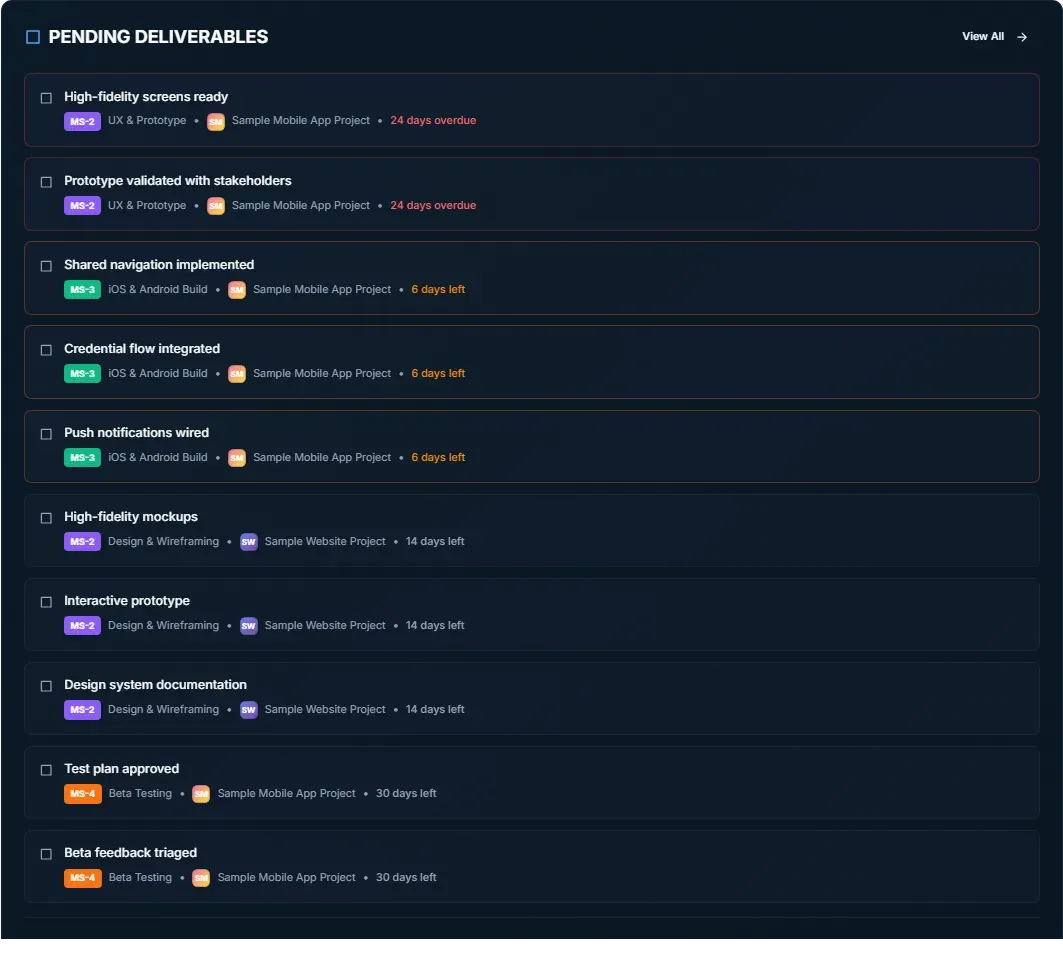
Vaizy emails you when a deliverable you're on is coming due, and sends a Slack message too. Any link to a deliverable, from a mention, from the Pending Deliverables widget on your dashboard, or from a reminder, opens that exact deliverable.
If you're in Member Mode
You see only the deliverables you're part of: ones where you're Responsible, Accountable, Consulted, or Informed. You can drag your own cards to update their status and log time against them. Creating and deleting deliverables is left to project managers.
Was this helpful?
Still need help? Ask the team