Importing data
Moving from spreadsheets into Vaizy doesn't mean re-typing everything. The import dialog brings in your existing data directly.
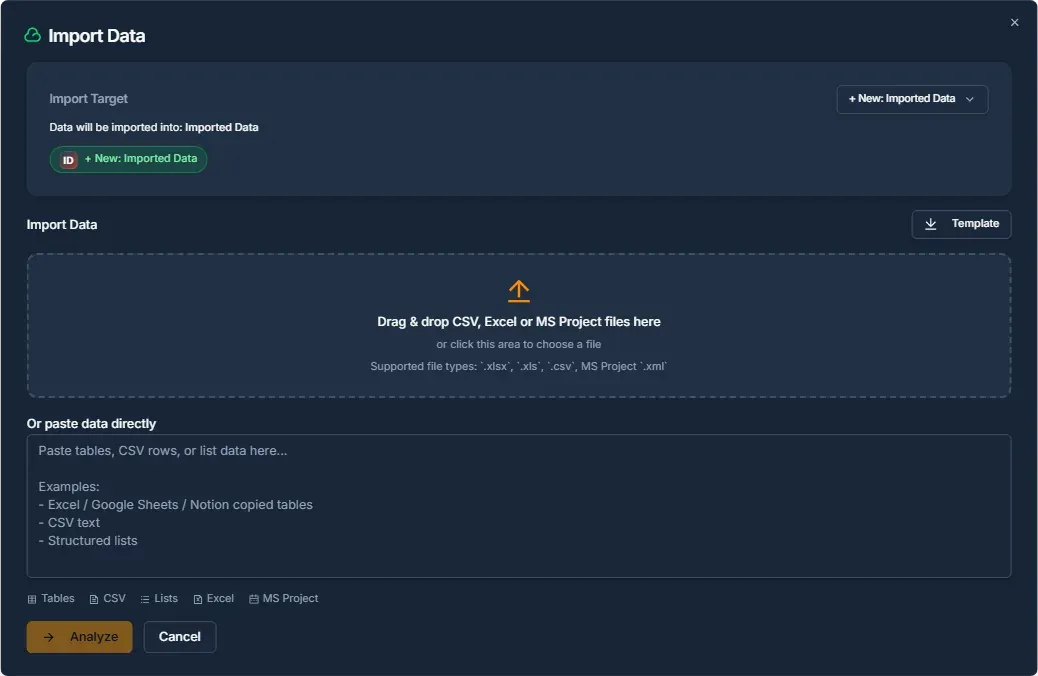
What you can import
The import dialog supports:
- Milestones
- Team members
- Risks
- Finance transactions
- Hours and timesheets
- Microsoft Project plans
Importing from Microsoft Project
Export your plan from Microsoft Project as XML, CSV, or Excel and drop it into the import dialog. Vaizy recognises it as a Microsoft Project plan and brings across:
- Outline levels, so your task hierarchy is kept
- Predecessors, with their link type and lag
- Baselines
- Resource assignments
A predecessor without an explicit link type comes in as finish-to-start. Blank outline levels, invalid XML, and very large plans are handled safely instead of failing halfway. Statuses written as "Paused", "Canceled", or similar spellings are recognised as On Hold and Cancelled.
How it works
Every import follows the same steps, regardless of what you're bringing in:
- Upload or paste your data. Use an Excel file, a CSV, or paste directly from a spreadsheet.
- Pick the destination project. Choose or create the project the data should land in, directly inside the dialog.
- Entity detection. Vaizy detects which type of data you're importing based on the columns present.
- Column mapping. Match your spreadsheet's columns to the right Vaizy fields. Vaizy suggests mappings automatically where it can.
- Preview. Review exactly what will be created before anything is saved. Dates show in your profile's date format.
- Import. Confirm and the rows are created.
Where to start an import
Import is available from the dashboard for quick access, and from each section's own page (Milestones, Team, Risks, Finances) when you want to import directly into that context.
Dates during import
If a date in your file is ambiguous, Vaizy uses your profile's date format to interpret it correctly rather than guessing. Set your preferred date format in Settings > Preferences before importing if you're not sure which one is active. See Languages and currency for how date formats work by locale.
Milestone codes on import
Milestones brought in through import are assigned sequential MS-N codes during the import itself, so they never arrive uncoded or collide with existing codes. The same applies to risks, which are assigned sequential RI-N codes on import. Milestone imports also support a progress field, and risk imports support risk/issue type classification.
Was this helpful?
Still need help? Ask the team