Milestones and resource planning
Milestones are the delivery backbone in Vaizy. They carry the timeline, ownership, progress, risk links, financial links, and EVM inputs.
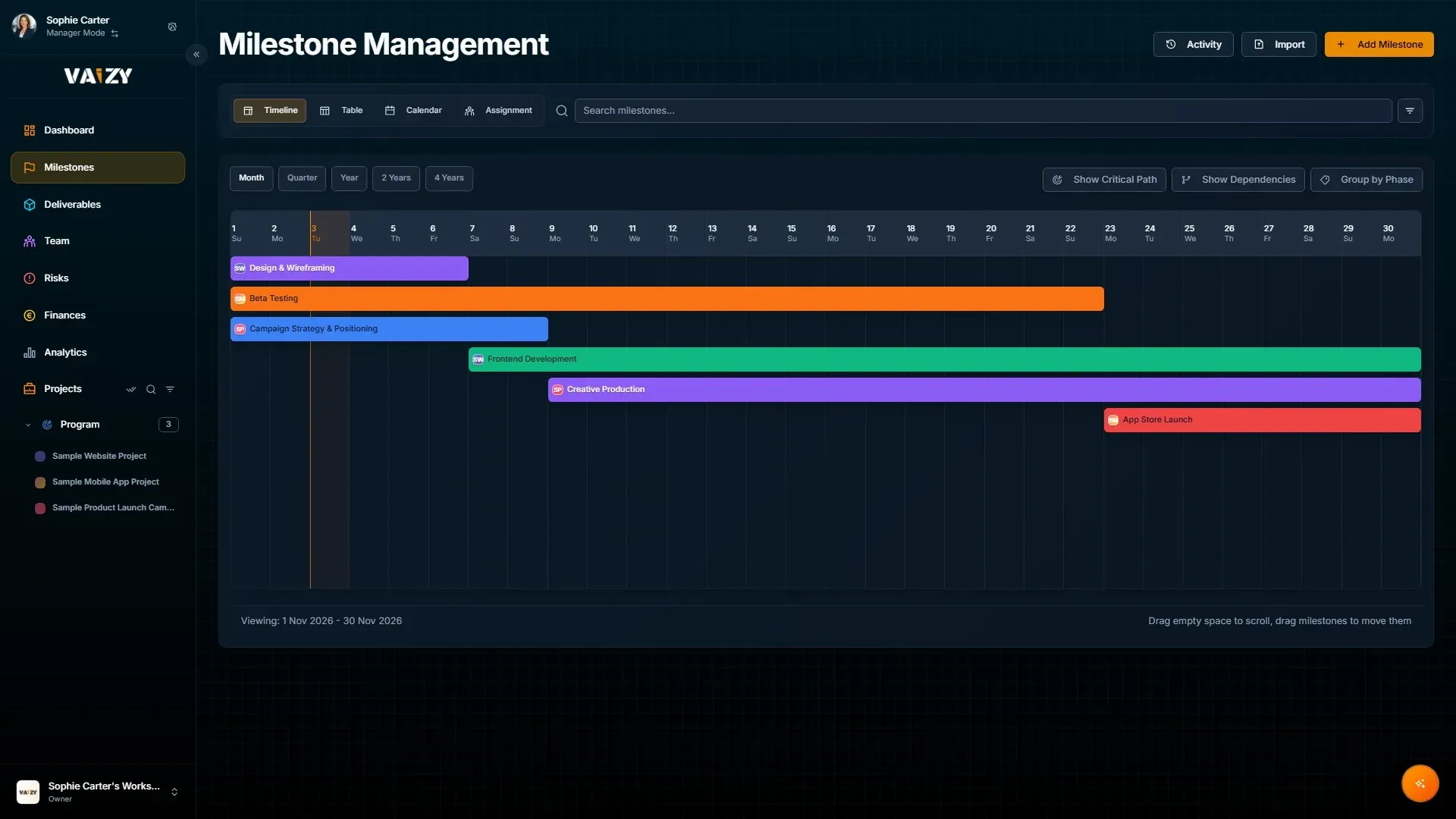
Timeline view
The timeline gives a Gantt-style view of project phases and deliverables. Use it to see sequence, overlap, dependencies, and delivery pressure across a month, quarter, year, or 2-year window.
Actions available:
Drag milestones to change dates.
Select several milestones and drag or resize them together. Before you drop, Vaizy shows how the team cost changes. This works in the capacity view too.
Add a milestone: click Add Milestone, or draw on an empty lane, then type the title and press Enter. The new milestone starts with the previous milestone's team, for everyone still on the project whose contract covers its dates.
Filter by status, owner, or phase.
Show critical path and dependencies.
Switch between month, quarter, year, and 2-year views. The today indicator is visible on all zoom levels.
Dependency arrows are colour-matched to their source milestone, so the line leaving a milestone uses that milestone's colour. This makes it easier to trace which milestone feeds which on a busy timeline, and the lines now route with clean right-angle corners instead of straight lines that could overlap other bars.
Dragging or resizing a milestone next to another always snaps one day clear of the neighbour's start or end day, so you can no longer accidentally drop a milestone onto the same day a neighbouring one starts or ends. Dragging a milestone bar also needs a small pointer movement before it commits a date change now, so a slightly shaky click won't move it. Month view doesn't auto-snap at all, and holding Alt or Ctrl suppresses snapping in the other zoom levels.
If you can only view a project, its milestones can't be dragged or resized. The timeline also keeps your scroll position when you refresh.
Quick actions
Right-click a milestone bar, card, table row, calendar entry or capacity row, or use the "..." menu on a row, to Ask Vaizy, Edit, Duplicate or Delete. You only see the actions your access to that project allows.
Kanban view
Group milestones by status into columns and drag cards between them to update status. Each card shows the milestone name, due date, linked project, and owner avatar. You can now sort each column independently, instead of one sort order applying to the whole board.
Table view
The table is the fastest place to review many milestones at once.
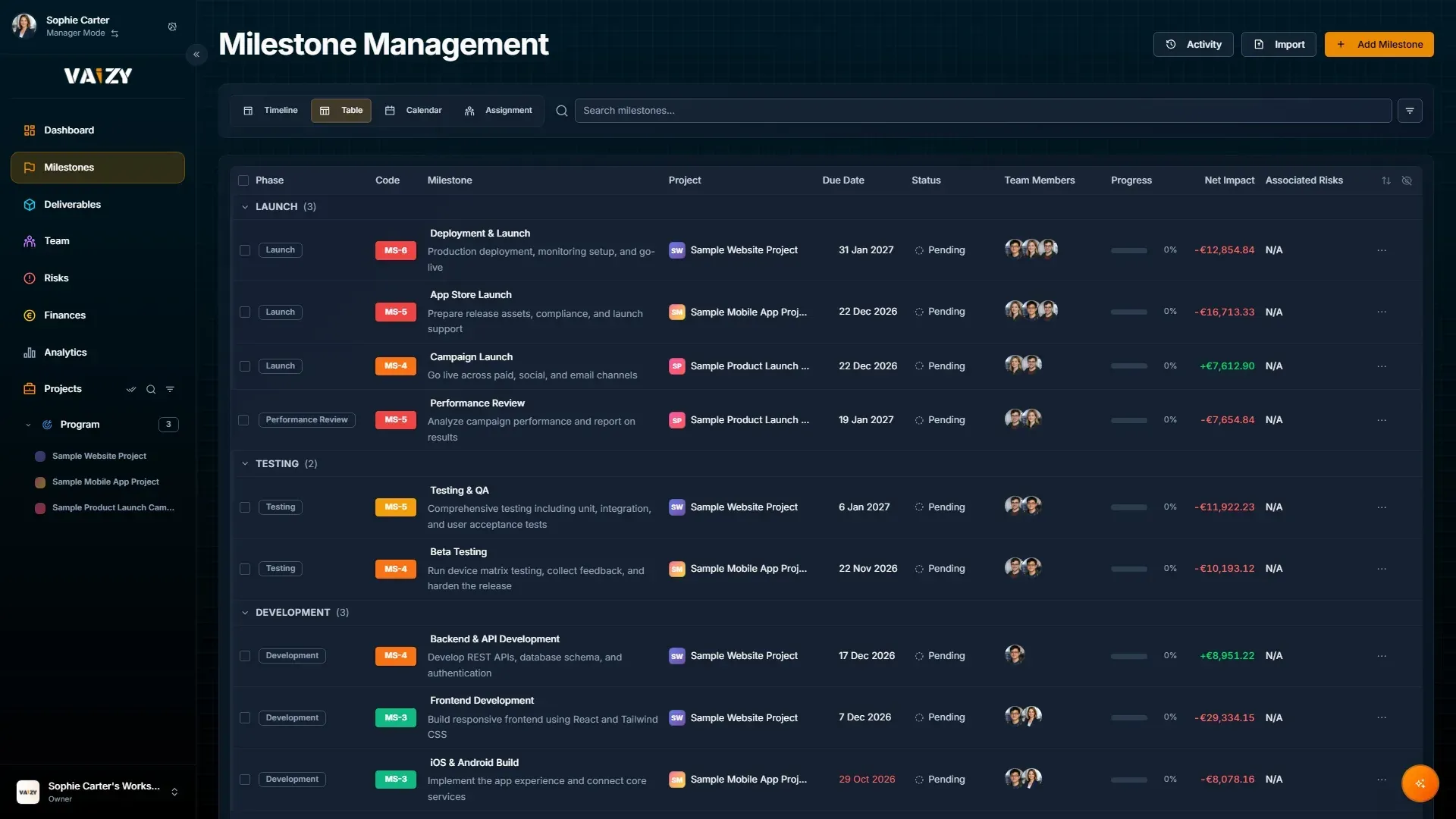
Use it for bulk edits, imports, status checks, and cleanup. Drag over rows to select them all at once; the same works for cards on the Kanban board, and dropping one selected card in a column moves the whole selection. Press Esc mid-drag to go back to your earlier selection. Each milestone has a stable code such as MS-1, so discussion does not depend on long names — including milestones brought in through import. You can also set your own custom code, such as DESIGN-APPROVAL, in place of the auto-generated one; custom codes must be unique within the project.
Moving over from Microsoft Project? The import dialog accepts Microsoft Project XML files and CSV or Excel exports, and keeps your outline levels, predecessors, baselines, and resource assignments.
Due dates in the list follow the date format you chose in your profile, the same as everywhere else in the app.
Click a single cell — a title, a status badge, a date, or the + beside an assignee's avatar stack — to change it right there, without opening the full form. The full form is still there for bigger edits. If a save fails, the cell rolls back and you'll see a message.
Editing an existing milestone through the full form now autosaves as you make changes, with a small "Saving..." / "Saved" label in the form footer — you don't need to remember to click Save. Creating a new milestone still saves on submit. Pressing Enter in a single-line field saves straight away, and closing the form with Escape, a click outside, or the X keeps any change that was still waiting to save.
Clicking a dependency reference in an open milestone form closes that form before scrolling to the linked milestone, so two forms cannot be open at the same time.
Milestone descriptions support bold text and bullet lists via a lightweight toolbar or Ctrl+B, with the same formatting shown wherever the description is displayed. Clicking Bold or Bullet-list before you've clicked into the text box now starts that formatting from where you type next, instead of doing nothing. Pasting rich text from Word or Google Docs keeps only the bold and list formatting. Status shows as a colour-coded badge everywhere it appears, and the suggested phases offered when creating a milestone now vary based on the project's industry. New projects created during onboarding also start from the template that best matches the project's industry.
Undo a change
Made a mistake? Press Ctrl/Cmd+Z to revert your most recent create, edit, delete, or bulk action on milestones, including a timeline drag that changed a milestone's dates. Every change shows a success message with an Undo button too, and you'll find an "Undo: " entry in the command palette while there's something to undo. This is a quick safety net for the last few minutes, not a permanent history — entries expire after 5 minutes.
Search and filter controls stay together on mobile, instead of the filter row wrapping onto its own line below the search bar. Whatever filter, search term, and sort order you set on Milestones, Risks, Deliverables, or Finances stays in place for the rest of your browser session.
The table footer shows summary totals for the milestones in view, matching the same footer totals on Risks, Finances, Team, and Deliverables.
Change history
Open a milestone and switch to the Activity tab to see who changed what and when. Text changes are highlighted word by word, and moved dates show as a small pill. To see the history of every milestone at once, click the Activity button on the Milestones page.
Phases
Milestones carry a phase, shown as a badge on the timeline, the milestones table, the resource planning matrix, the calendar view, and the Upcoming Milestones dashboard widget. The timeline and table can also group rows by phase, so you can see a project's structure at a glance. On the timeline, each phase collapses into one summary bar showing its span and combined progress. A phase filter is available on Milestones, Risks, Deliverables, and Finances, since risks, deliverables, and finance rows can carry the phase of the milestone they're linked to.
On Hold and Cancelled milestones
Not every milestone runs to the finish line. Set its status to On Hold or Cancelled and Vaizy treats it accordingly:
On Hold pauses the milestone. It's never flagged as overdue and sends no reminders, but it still counts towards project progress.
Cancelled takes the milestone out of the plan. It's never overdue, sends no reminders, is left out of progress and earned value, and stops generating future team costs. Anything already spent on it still counts as actual cost.
The Status field in the milestone form shows live deliverable progress and tells you whether status is being set automatically from deliverables or by hand. A status you pick yourself sticks, even when the milestone has deliverables.
Completing or deleting a milestone
When you mark a milestone completed, Vaizy records today as its completion date if none is set yet. You can change that date afterwards. Finish a milestone before its due date and its team costs stop on the completion date rather than running on to the due date. Change the completion date and the costs are recalculated to match.
Deleting a milestone also removes the team costs Vaizy generated for it. If you undo the delete, those costs come back and the milestone's income, expenses, risks, and deliverables are linked to it again.
RAG status
Every project and milestone on the Roadmap shows a Red/Amber/Green status derived from schedule and budget position — on track, at risk, or off track — so you can spot drift at a glance instead of opening each milestone. A project only stops being evaluated for RAG once it's marked closed, so projects with an end date set but still active continue to show accurate milestone and budget health.
When a project or milestone crosses its RAG tolerance, Vaizy now lets you know by email, Slack, or Slack DM instead of quietly changing the badge colour. You can switch each channel on or off under RAG status in Notifications.
Remarks
Milestones have a comment thread where collaborators can leave timestamped, attributed notes. Comments show the author's avatar and can be edited or deleted by their author.
Type @ in a remark to mention another milestone, risk, deliverable, or team member on the project. The mention renders as a clickable chip linking to what you mentioned. Mentioning a team member also sends them an email straight to the milestone (a separate toggle in Notification settings), and suggestions only show people who actually have access to the project.
Who else is here
Milestones shows an avatar stack of other users currently viewing the same project, so you can see who else is looking at the same data. Changes anyone makes sync live to your screen without a refresh.
Deliverables and progress
Every milestone shows a progress percentage, visible in the timeline roadmap and in the milestone form.
Progress works two ways:
If a milestone has a deliverables checklist, progress is derived automatically from how many items are completed.
If it does not, you can set progress yourself with the slider in the milestone form.
Completed milestones always read 100%, and status and progress update together, so a completed milestone never briefly shows progress below 100%.
This matters because EVM uses milestone plans, completion, and linked costs to calculate planned value, earned value, and actual cost.
Each deliverable can also carry its own logged time and a RACI (Responsible/Accountable/Consulted/Informed) assignment view, alongside Kanban and table views. The Assignee, Consulted, and Informed pickers show each person's avatar so you can confirm who's who at a glance.
Deliverables have their own comment thread, just like milestones. Type @ to mention another deliverable, milestone, risk, or team member, and mentioning a team member sends them an email. Deliverable due-date reminders go out by email too, and clicking through from a mention, the dashboard's pending-deliverables widget, or a reminder opens the exact deliverable directly. On the Deliverables Kanban board, hover a card to use keyboard shortcuts: Space assigns it to yourself, E opens it for editing, and Backspace/Delete deletes it.
Link risks and finances
Connect a risk to the milestone it threatens. Connect financial transactions to the milestone they belong to. That gives the portfolio view teeth: schedule, risk, and budget explain each other. When several milestones share a salaried team member in the same month, that month's cost is split between them by the days each one covers. A milestone's Financial tab and its Net Impact figure in the Milestones table always show the same number, and across milestones they add up to what was actually spent.
Resource planning
The resource planning matrix shows who is assigned across active milestones and when their load starts to stack up.
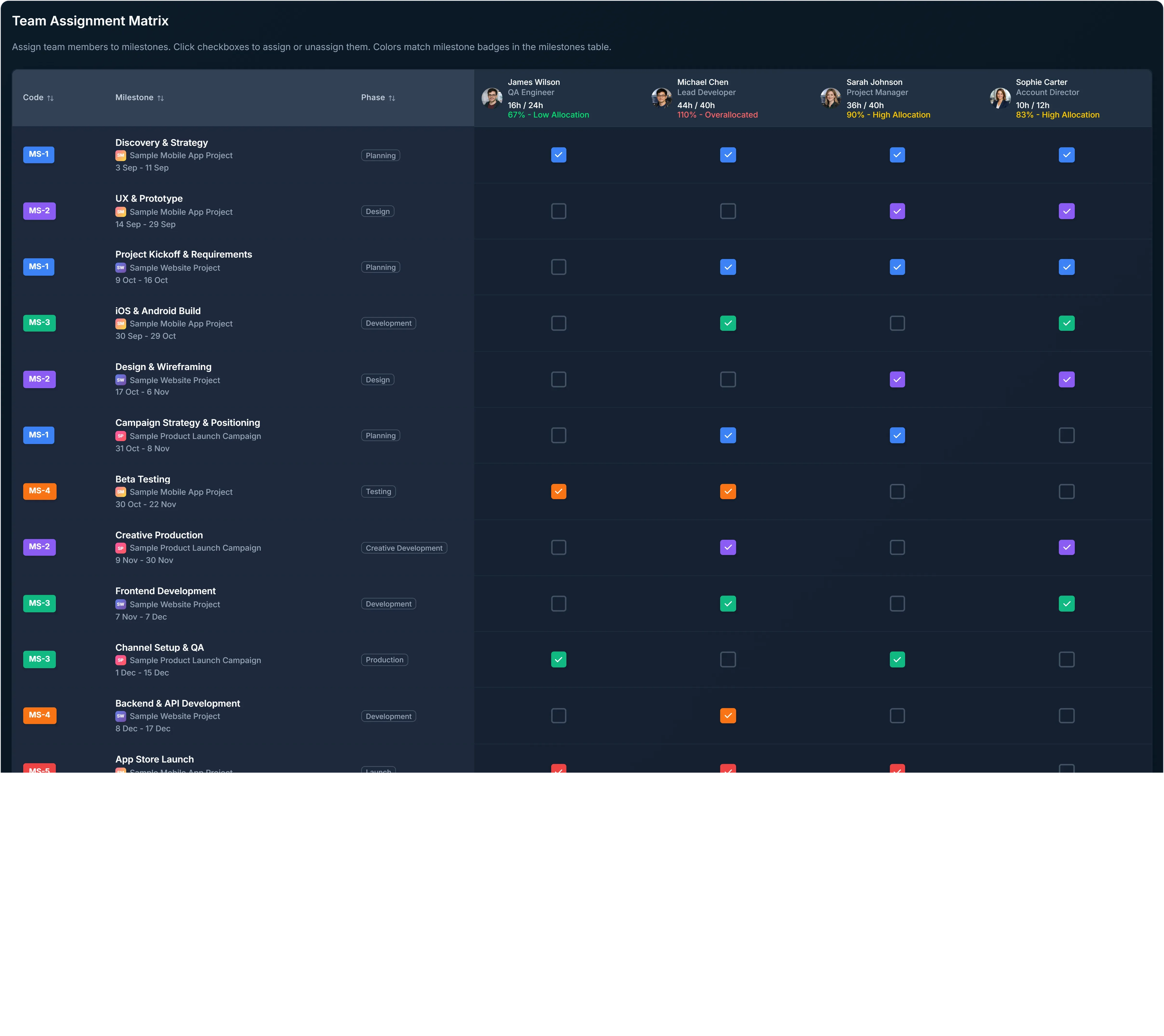
The first columns stay pinned on horizontal scroll, so names and roles do not disappear when the grid gets wide. Assignment checkboxes are sized for easy clicking, and you can drag across cells to tick or untick several at once. Each milestone's time span shows as a bar, and each person's allocation badge tells you at a glance whether they're on low or high allocation, or overallocated.
If someone is outside their contract window, they show up greyed out and unclickable when you try to assign them, with a clear reason — either their contract hasn't started yet or it's already ended.
A Gantt-style team allocation view shows workload across the project timeline alongside the milestone schedule, so you can see who's stretched thin without cross-checking a separate matrix. On Pro and Enterprise plans, the Capacity Planning view on the Team page takes this further across all projects. See Team and Member Mode.
Was this helpful?
Still need help? Ask the team